
Until now, every time you pressed Save in Bricks Builder, the change went straight to your visitors, even if you were only halfway done. The latest Bricks features fix that, and a few other everyday problems of editing a live site.
The problems the latest Bricks 2.5 features solve
Visitors see your half-finished changes
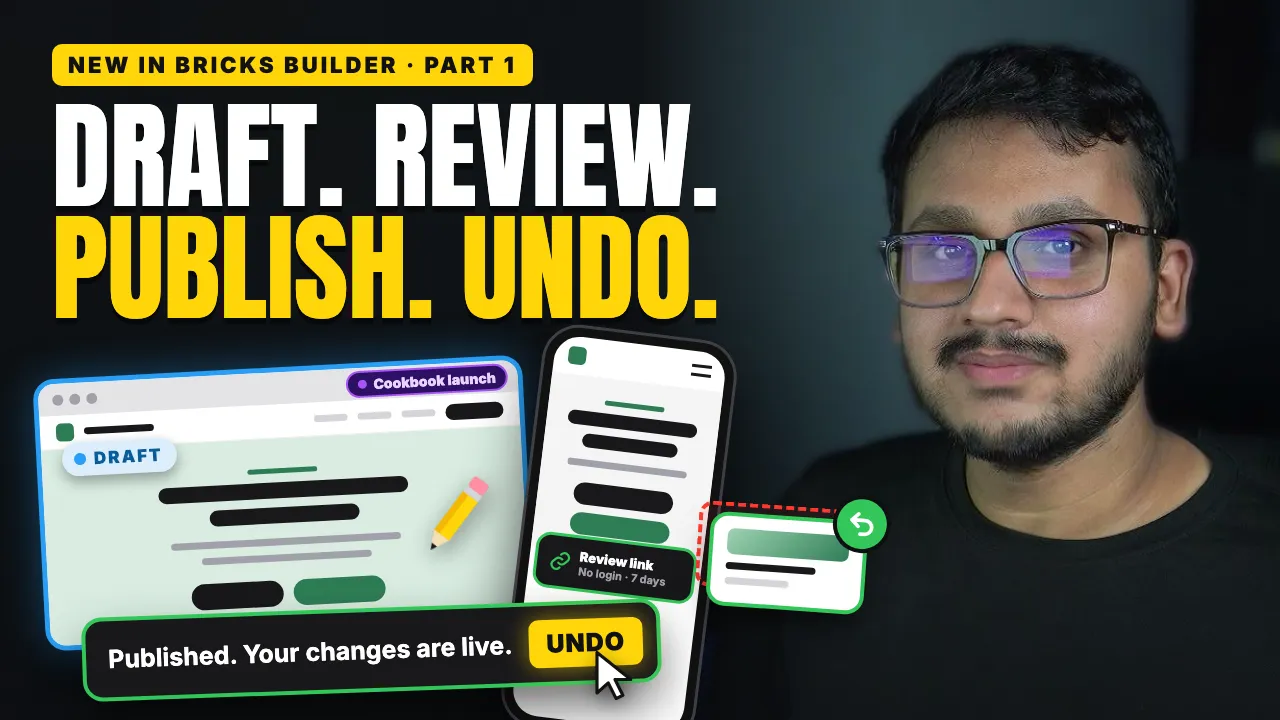
You start reworking a page, press Save, and it's live, half done. With page drafts, Save goes into the draft and visitors keep seeing the live page until you publish. The video shows where to switch drafts on and how to check it in a logged-out window.
Your client needs a login just to approve a change
Creating a WordPress account only so a client can look at a page is a hassle and a risk. A review link opens the draft on their phone without a login. They can look but not change anything, and the link expires after the days you choose.
Publishing feels like a one-way door
Once a change was live, the only way back was to rebuild it by hand. Now Bricks shows an Undo button right after you publish, and the page goes back to exactly what it was before.
One launch touches several pages and a shared class
Changing pages one by one means a half-updated site for a while, and a class change hits every page at once. A site version holds several pages and shared styles and publishes them together. If someone edited the live page in the meantime, Bricks shows the conflict and lets you choose what to keep.
Someone deleted a class and the design broke
Delete the wrong class and every element that used it loses its look. Global data revisions keep a history of classes, variables, colours, theme styles and more, including deleted items, and one click brings the class back on every page.
One warning: drafts are off by default and still marked experimental, so try them on a staging site first.