
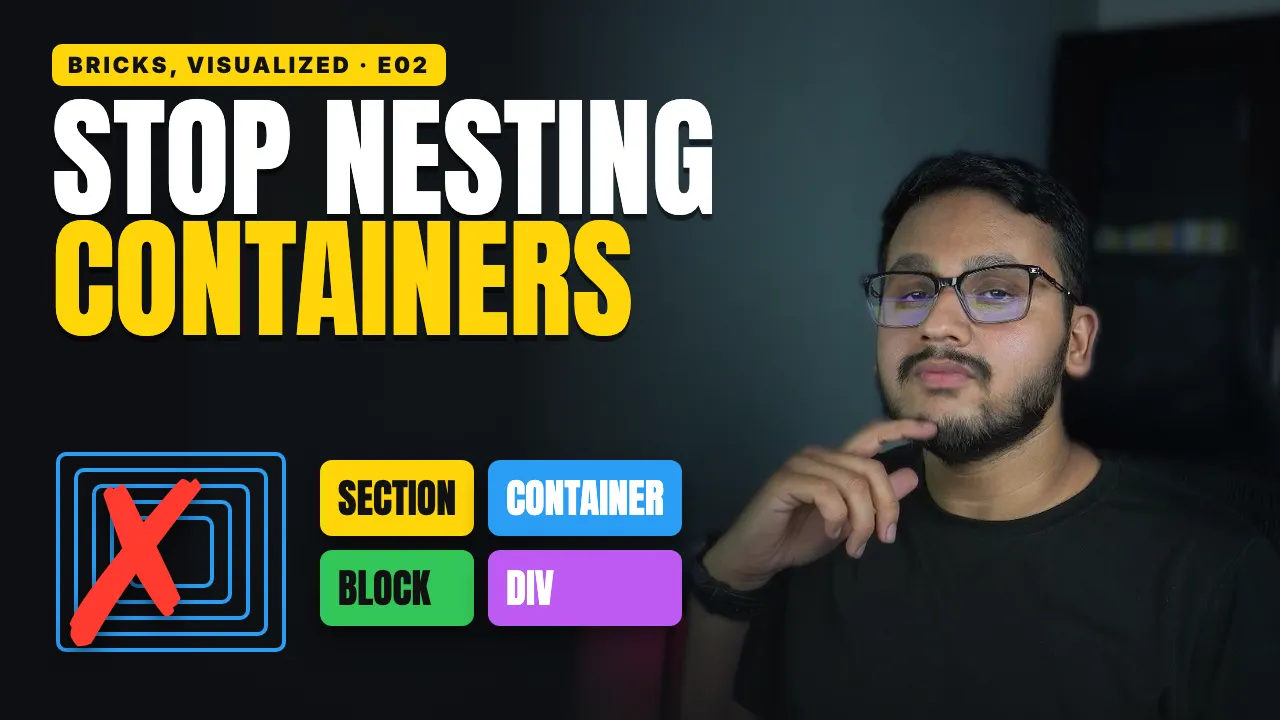
Open a beginner's Bricks page, and you'll often see containers inside containers inside containers.
It works, until you try to change the spacing and nothing behaves.
Bricks gives you four layout elements, and each one has one job. Once you know the jobs, your structure starts to make sense.
The four jobs
Section: the band
The outer box of your page: a band running across the full width of the screen. One topic per section: your hero, your features, your contact. Give a section a background and it fills the whole band.
When you add a section, Bricks puts a Container inside it for you. Usually, one section has one container. Need something to touch both edges of the screen, like a full-width image? Then you can delete that container.
Container: the width
Keeps your content inside a set width: 1100px and centered by default. The section's background reaches the edges while your content stays in the middle.
Want a different width for your whole site? Change it once in Theme Styles (Element › Container). Theme Styles are your site-wide default settings.
Section, then one Container inside it: that's the basic pattern.
Block: the columns
Each column is one Block. Say you want text on the left and an image on the right:
In the structure panel, click the heading, then hold Shift and click the button. That selects all three.
Right-click → Wrap → Block. Then do the same for the image.
By default, the container stacks things, so your two Blocks sit one under the other.
Select the Container, not the Blocks. Set its Direction to horizontal, then add a Column gap: the space between the two columns.
On its own, a Block is as wide as the container. Side by side, the Blocks share that space equally.
Stack them on mobile
Two columns side by side are too tight on a small screen. In the toolbar, switch to the Mobile landscape view (any changes you make now also apply to smaller phones). Select the Container again and set its Direction back to vertical.
Now your columns stack on phones and stay side by side on desktop. It's the most common mobile fix in Bricks.
Div: the small group
A plain box: Bricks adds no default settings to it. Inside other layout elements, it grows and shrinks to fit what's inside. Use it for small groups, like an icon with its label.